Server & client lifecycle
The core loop of mod testing is “launch the server, launch the client, watch it, kill it, try again.” DayZ Labs turns that into a few clicks on the Dashboard — no more hand-built command lines.
Everything on this page happens in the installed tray app. If you haven’t set it up yet, start with Install & first run.
The Dashboard
Section titled “The Dashboard”The Dashboard is the first thing you see when you open DayZ Labs. It has two cards — a Server card and a Client card — and a row of status pills along the top (SERVER / CLIENT / MCP / P: / GITHUB / STEAM) that tell you at a glance what’s running and what’s connected.
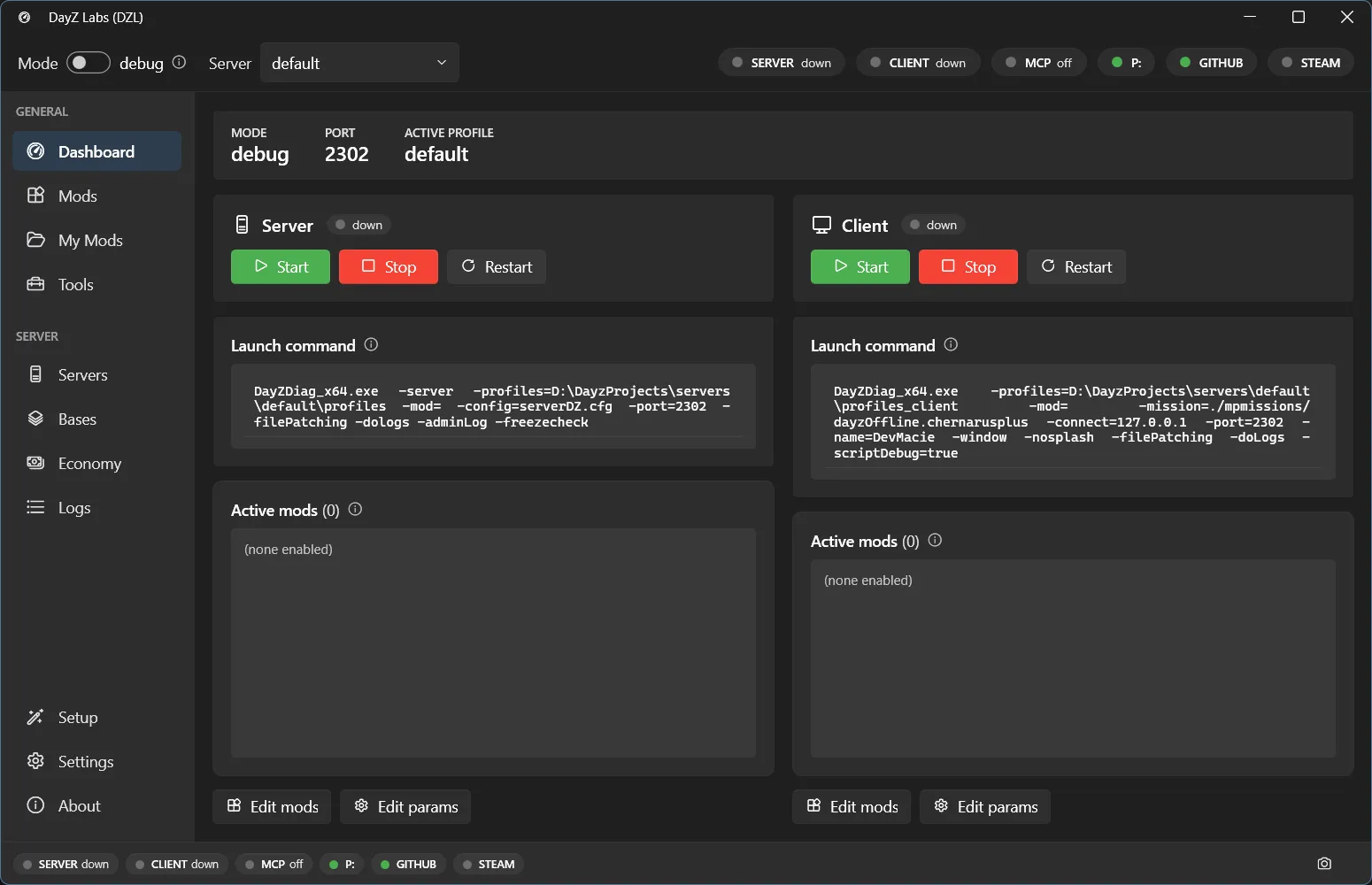
The Dashboard: Server and Client cards, each with Start / Stop / Restart and a live launch-command preview.
Each card has the same three buttons — Start, Stop, and Restart — plus:
- a live preview of the exact command line DayZ Labs will run, so you can see precisely what’s about to launch before you click;
- the active mods list, in load order, so you know what’s going into this session;
- Edit mods and Edit params buttons to change the loadout or launch parameters without leaving the Dashboard.
Debug or normal mode
Section titled “Debug or normal mode”At the top of the Dashboard is a Mode toggle:
- Debug launches DayZ’s
DayZDiagexecutable from your DayZ game install. This is the one you want while developing — it writes the script log, so you can see yourPrint()output and catch script errors. - Normal launches
DayZServer_x64.exefrom your DayZ Server install (a separate Steam app, usually in...\DayZServer). Use this to check how your mod behaves the way players will actually run it. Set the path under Settings → Paths → DayZ Server (normal mode); leave it blank only if your dedicated server files live inside the game folder.
Flip the toggle and the launch-command preview on each card updates instantly to match.
Picking which server runs
Section titled “Picking which server runs”The Server dropdown at the top of the Dashboard chooses which of your server instances
is active. Each instance is its own serverDZ.cfg, profile, port, and mod loadout, so you
can keep, say, a Chernarus test server and a Livonia test server side by side and switch
between them in one click. You create and manage these on the
Servers page.
Start, stop, restart
Section titled “Start, stop, restart”- Start spins up the server (or client) in the mode you’ve selected, with the active mods and params shown on the card.
- Restart stops and relaunches in one step — the button you’ll reach for most after a code change.
- Stop shuts it down cleanly when you’re done.
You can run the server on its own, the client on its own, or both — each card is independent.
The status you see is the truth
Section titled “The status you see is the truth”DayZ Labs remembers the process IDs it spawned and checks them against the actually-running process image. That means a recycled PID is never mistaken for a live server: when the SERVER or CLIENT pill says it’s up, it really is. If a process dies on its own, the pill flips back and the card’s buttons return to their ready state.
Watching the logs
Section titled “Watching the logs”Once the server is up, head to the Logs page for a live tail of the Script, RPT, ADM, and Client logs — so you can watch your mod load and spot errors without hunting for log files on disk.
Power users: CLI & automation
Section titled “Power users: CLI & automation”The Dashboard is the main way to drive the lifecycle, but the same actions are available from the bundled command-line tool and the MCP server if you want to script your loop or let an AI agent run it. For example, from the CLI:
dzl start --client # server + client, debug modedzl restartdzl stop --clientThese are optional extras — you never need them for everyday testing.
DayZ Labs (dzl) is an unofficial, community-made tool, not affiliated with or authorized by Bohemia Interactive a.s. Bohemia Interactive, ARMA, DAYZ, ENFUSION and all associated logos and designs are trademarks or registered trademarks of Bohemia Interactive a.s.