Getting started
DayZ Labs (dzl) is a Windows app for DayZ mod developers. It starts and stops your
local dev server and client, manages your mods and config, and wraps the DayZ Tools —
all from one window. This guide takes you from downloading the installer to a running
server and client.
What you need first
Section titled “What you need first”- Windows.
- DayZ and DayZ Tools, both installed through Steam.
That’s it. You don’t need any developer tools or a code editor to run DayZ Labs.
1. Download and install
Section titled “1. Download and install”- Go to the Releases page.
- Download
DayZLabs-win-Setup.exefrom the latest release. - Run it.
The installer is per-user — it installs just for your account and does not ask for administrator rights. Once installed, DayZ Labs keeps itself up to date automatically from GitHub Releases, so you won’t have to download new versions by hand.
When it finishes, launch DayZ Labs from the Start menu.
2. First-run setup wizard
Section titled “2. First-run setup wizard”The very first time you open the app, a short setup wizard walks you through getting everything connected. Each step:
- Confirm your paths — the wizard tries to find your DayZ install, your DayZ Tools install, and (optionally) the separate DayZ Server install Steam keeps in its own folder. Check that the detected folders are right (or point it at the correct ones). DayZ Server is only required for normal mode; debug mode uses the diagnostic executable from the game folder.
- Pick your main project folder — this is where your mod projects will live. The
default is
%USERPROFILE%\DayZProjects. - Mount the P: work drive — DayZ Tools uses a virtual P: drive for vanilla game data and as a packing root. The wizard mounts it for you.
- Extract vanilla game data — pulls the base game’s files onto P: so your mods have something to build against.
- Create a server instance — sets up your first server (its own config, profiles, and port) so you have something to launch.
- Set your mod scan-roots — tells the app where to look for installed mods so it can list them for you.
You can re-run this wizard any time from Setup in the left navigation, near the bottom.
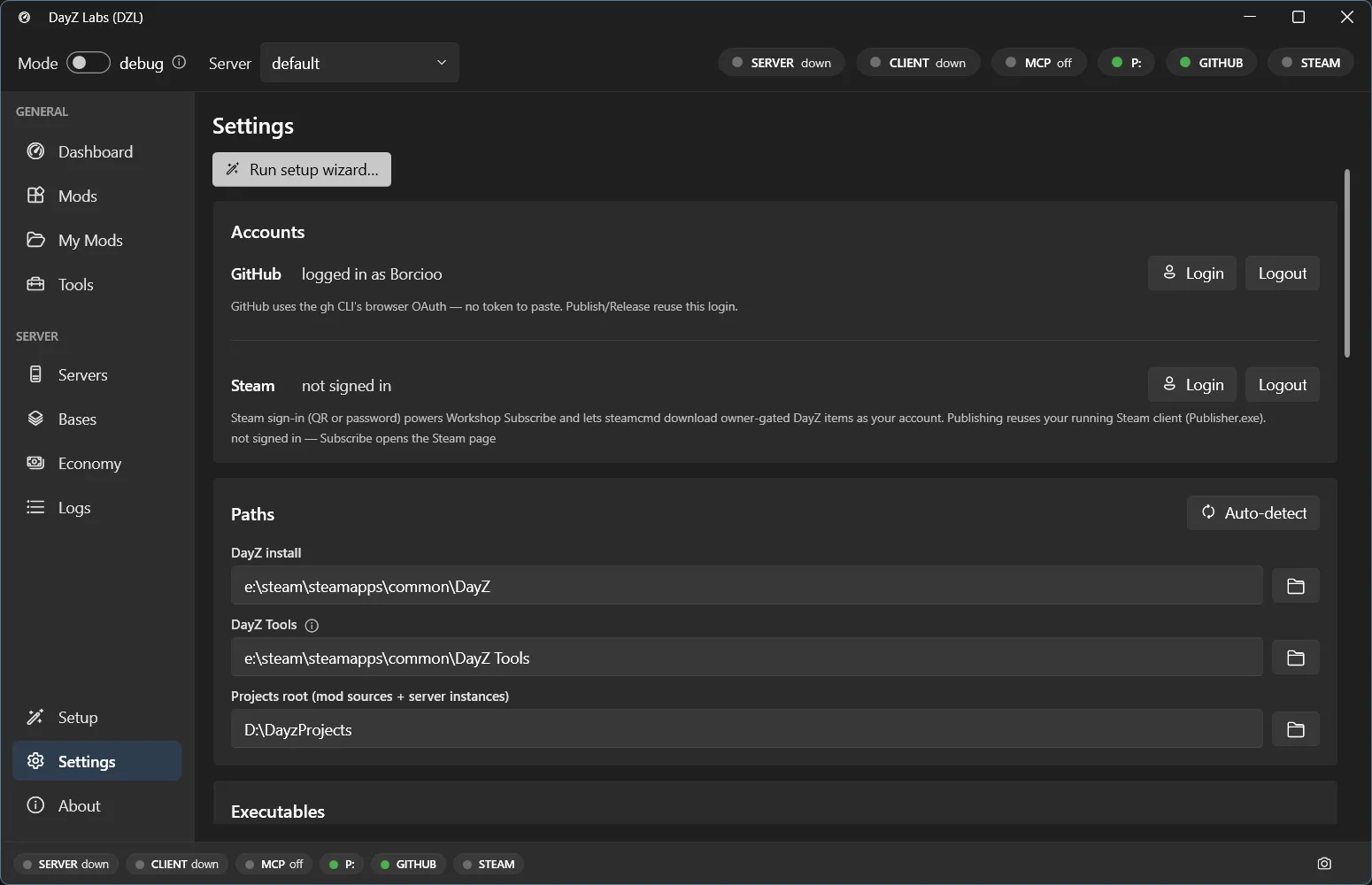
The Settings page, where the same paths the wizard sets up live. Open it from the bottom of the left navigation to review or change your DayZ, DayZ Tools, DayZ Server (normal mode), and Projects folders — there’s an Auto-detect button if you’d rather let the app find them.
If you ever need to fix a path later, that’s where to go: Settings has tabs for Accounts (sign in to GitHub and Steam), Paths (DayZ install, DayZ Tools, DayZ Server for normal mode, Projects root), and Executables.
3. The Dashboard — launch your server and client
Section titled “3. The Dashboard — launch your server and client”After setup, you land on the Dashboard. This is your control center for running the game.
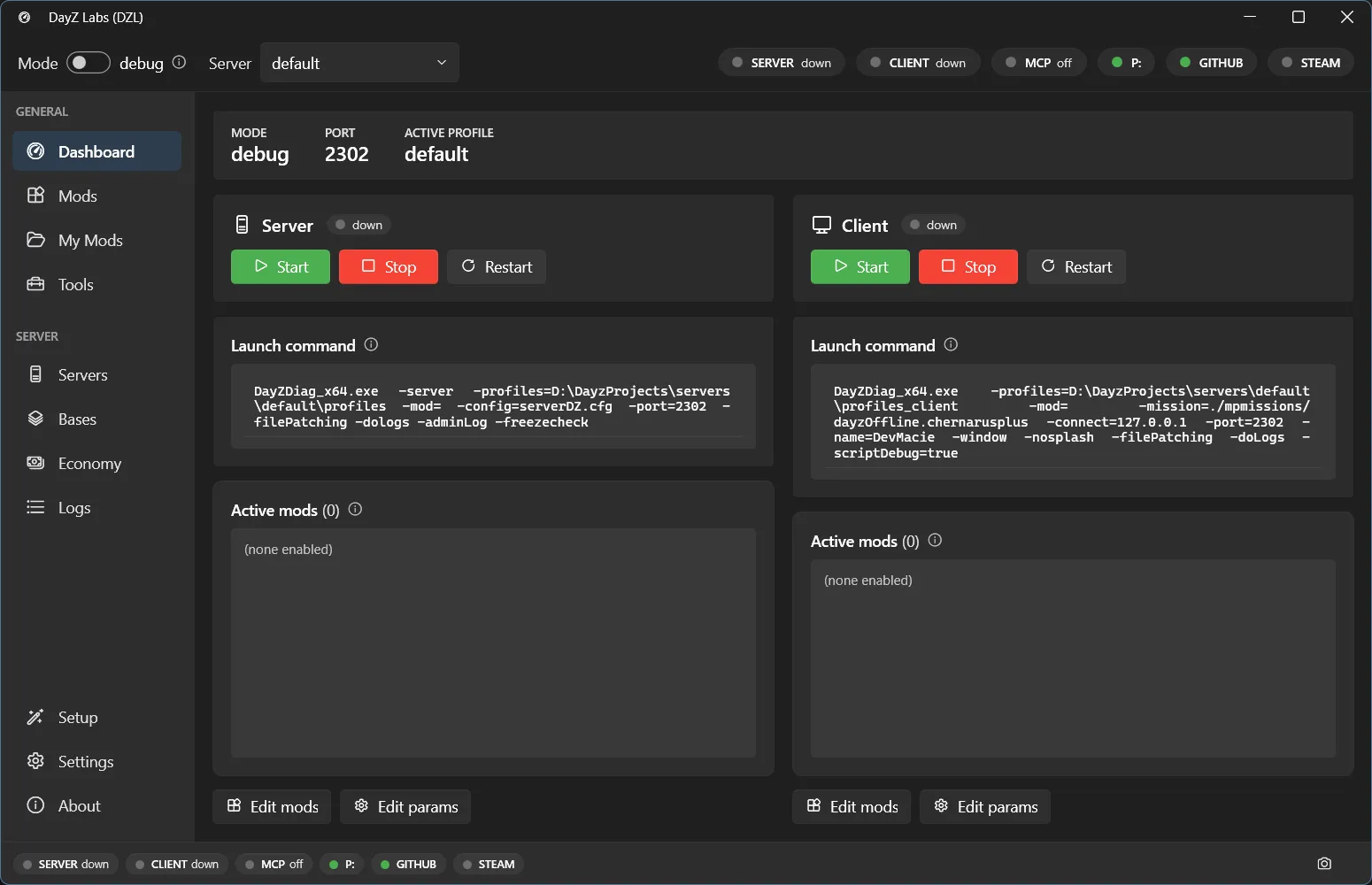
The Dashboard: the mode toggle and server dropdown up top, status pills, and the Server and Client cards each with their own Start / Stop / Restart and a live preview of the exact launch command.
Here’s what you’re looking at:
- Mode toggle (debug / normal) — debug launches the diagnostic DayZ executable with extra logging, which is what you want while developing. normal runs the regular release build, closer to how players will see it.
- Server dropdown — picks which of your server instances is active. Whatever you launch uses this one.
- Status pills — quick health indicators across the top: SERVER and CLIENT show whether each is running, MCP shows the automation server, P: shows the work drive, and GITHUB / STEAM show whether you’re signed in.
Below that are two cards, one for the Server and one for the Client. Each card has:
- Start / Stop / Restart buttons to control that process on its own.
- A live preview of the exact launch command — the full command line the app will run, updated as you change mode or mods, so there are no surprises.
- The active mods list — the mods that will load, in order.
- Edit mods and Edit params buttons to change the loadout and launch parameters.
To get going: pick debug mode, make sure the right server is selected, then press Start on the Server card. Once it’s up, press Start on the Client card to connect. Use Stop or Restart on either card whenever you need to.
Where your files live
Section titled “Where your files live”Your config is stored at:
%LOCALAPPDATA%\dzl\config.jsonYour mod projects live under the Projects root you picked in the wizard (default
%USERPROFILE%\DayZProjects), organized into mods/, build/, servers/<name>/, and
keys/. You don’t normally need to touch any of this by hand — the app manages it — but
it’s there if you want to peek.
Power users: CLI and MCP
Section titled “Power users: CLI and MCP”The desktop app is the main way to use DayZ Labs, but it isn’t the only one. The same engine also ships as a command-line tool (handy for scripting and CI) and as a bundled MCP server so an AI assistant like Claude can drive your server, read your logs, and build your mods for you. If that’s your thing, see the MCP server guide.
Next steps
Section titled “Next steps”DayZ Labs (dzl) is an unofficial, community-made tool, not affiliated with or authorized by Bohemia Interactive a.s. Bohemia Interactive, ARMA, DAYZ, ENFUSION and all associated logos and designs are trademarks or registered trademarks of Bohemia Interactive a.s.